
You’ve likely experienced it. The familiar frustration of trying to streamline your WooCommerce product management, only to hit a wall when it comes to variable products. You navigate to your dashboard, select a handful of variable products, choose the ‘Edit’ bulk action, and proceed to adjust prices, stock levels, or perhaps even create a sale. It feels straightforward, intuitive even. Yet, after hitting ‘Update’, you check your frontend, or drill down into individual variations, and discover that precisely nothing has changed for your variations. This isn’t a glitch you’ve somehow introduced; it’s a well-documented, albeit maddening, limitation of WooCommerce’s native bulk editing capabilities when it comes to variable products.
For countless store owners, this oversight can transform a simple task into a time-consuming ordeal. Manually updating each variation’s price, attributes, or other fields isn’t just inefficient; it’s prone to errors, especially as your product catalogue grows. You’re left wondering why such a fundamental aspect of e-commerce management feels so broken. The good news is, you’re not alone, and more importantly, there are solutions. This guide aims to demystify why WooCommerce’s built-in bulk editor falters with variable products and, crucially, provide you with the practical fixes you need to reclaim your time and streamline your operations.
At the heart of the issue lies the fundamental structure of variable products in WooCommerce. Unlike simple products, which are singular entities with a single set of properties, variable products are composites. They serve as a template, a parent product that itself doesn’t have a price or stock level in the same way. Instead, the true business logic – the pricing, the unique SKUs, the specific stock counts, the distinct attributes like size and colour – resides within the individual variations that stem from this parent.
The Parent vs. The Child: A Conceptual Divide
When you create a variable product, say, a t-shirt, the parent product itself might have a general description and perhaps even imagery that applies to all variations. However, it’s the individual variations – the “Small, Blue,” “Medium, Red,” “Large, Green,” and so on – that carry the unique SKU, the specific price (which can differ between variations), and the precise stock quantity. This hierarchical structure is essential for offering a diverse range of options to your customers.
The Impermeability of Variation-Level Data
This inherent structure creates a challenge for bulk editing. When you select a variable product in WooCommerce’s backend and initiate a bulk edit action, the system is primarily designed to modify the properties of the parent product. It’s akin to trying to change the colour of every individual apple in a fruit bowl by only adjusting the properties of the bowl itself. The actions simply don’t cascade down to the individual components. Therefore, any price adjustments, stock updates, or attribute modifications you attempt through the standard bulk edit interface are largely rendered ineffective for the variations.
The Illusion of Control: UI Limitations
The WooCommerce UI doesn’t always make this limitation abundantly clear. You see fields for “Regular Price” and “Sale Price” presented in the bulk edit interface for variable products, leading you to believe these changes will apply across the board. When they don’t, it’s not a user error; it’s a consequence of the underlying architecture not supporting this direct manipulation of variation data through the native tool. This lack of transparency, while unintentional, contributes to the widespread confusion and frustration among store owners.
The Core WooCommerce Limitations: What You Can and Cannot Do Natively
WooCommerce’s built-in bulk editing functionality is a valuable tool for managing simple products efficiently. However, its design principles mean it falls short when your product catalogue includes variations. Understanding these specific shortcomings is crucial to knowing where to seek alternative solutions.
Bulk Actions: A Limited Scope for Complexity
When you navigate to Products → All Products, you’ll find a ‘Bulk actions’ dropdown. This feature is incredibly useful for tasks like changing product status, allowing you to quickly publish or unpublish multiple simple products, or to move them to the trash. It can also be used for basic meta data updates on simple products, such as setting a new regular price or sale price for a batch of identical items. However, its ability to interact with the intricate details of variable products is significantly restricted.
Price Editing: The Most Common Pain Point
The most frequently encountered issue is with price editing. You might try to apply a site-wide sale by reducing the regular price or setting a sale price for a group of variable products. As discussed, these changes will typically only affect the parent product’s display, if at all, and will not propagate to the individual variations. Each variation retains its own independent price, and the native bulk editor simply bypasses this level of granular control.
Attribute and Meta Data: Uncharted Territory
Beyond pricing, other critical aspects of variable products are also beyond the reach of the standard bulk editor. This includes modifying attributes (e.g., adding a new colour option to all variations of a t-shirt), updating variation-specific SKUs, or even bulk-changing the weight or dimensions for individual variations, which can be crucial for shipping calculations. These are areas where you’ll find yourself performing manual, repetitive tasks if you rely solely on WooCommerce’s default tools.
The User Interface’s Ambiguity
The user interface doesn’t proactively warn you about these limitations. When you select a variable product and choose the “Edit” bulk action, the fields presented might appear relevant. If you input a new price, the system accepts the input and processes it. The failure point occurs when you expect that input to translate into changes for all variations, which it doesn’t. This ambiguity is a significant contributor to why so many users believe the bulk editor is simply “broken” for variable products, rather than understanding its specific functional boundaries.
The Root Cause: Individual Variation Data Independence
To truly grasp why the native WooCommerce bulk edit fails for variable products, you need to understand the core principle of how variations are constructed and managed. Each variation is, in effect, its own mini-product, sharing a parent but possessing its own distinct set of data.
Variation as a Standalone Entity
Think of each variation as an independent entry within the WooCommerce database, linked to its parent variable product. This independent status allows for the flexibility required to offer diverse product options. For instance, a dress might have variations for size (Small, Medium, Large) and colour (Red, Blue, Green). Each of these combinations – “Small, Red,” “Medium, Blue,” – is a distinct variation with its own SKU, image, price, stock level, and potentially even its own shipping dimensions.
Separate Fields, Separate Control
Because each variation holds its own data in separate database fields, a bulk edit command directed at the parent variable product simply doesn’t have a mechanism to access and modify these individual variation fields. The parent product’s data is one set of fields; the variation product’s data is another, and the native bulk edit tool is designed to operate on the former. This separation is a technical necessity for offering the rich customisation that variable products provide.
The Cascade Effect Fails
There is no inherent “cascade” functionality in the base WooCommerce bulk editing system for variable product data. Unlike some other software where a parent-level change might propagate to all its children, WooCommerce’s bulk edit treats the variable product primarily as a container. Actions applied at this container level do not automatically descend to the individual items within it. This is the fundamental architectural reason behind the problem.
Impact on Pricing, Stock, and Attributes
This independence directly impacts what you can achieve. If you change the regular price on the parent variable product via bulk edit, that change affects nothing at the variation level. The individual variations continue to use their own independently set prices. Similarly, stock quantities are managed on a per-variation basis, and bulk edits of stock on the parent product will not adjust the stock levels of any of its variations. The same applies to crucial attributes such as unique SKUs, weights, or dimensions that might differ between variations.
The Solutions: Third-Party Plugins and Their Capabilities
Recognizing the limitations of its native bulk editing tools, the WooCommerce ecosystem has developed robust third-party solutions. These plugins are specifically designed to address the complexities of managing variable products, offering a level of control and efficiency that the core platform lacks.
WP Sheet Editor: A Spreadsheet-Like Interface for WooCommerce
One of the most popular and comprehensive solutions is WP Sheet Editor – WooCommerce Premium. This plugin transforms your WooCommerce product management into a powerful spreadsheet, not unlike Microsoft Excel or Google Sheets.
Granular Control Over Variations
WP Sheet Editor allows you to view and edit all your products, including variable products and their individual variations, in a single, unified interface. You can see columns for variation-specific data such as:
- Variation Price: Directly edit regular and sale prices for individual variations.
- Variation Stock: Update stock quantities for each variation.
- Variation SKU: Assign or modify unique SKUs for each variation.
- Variation Attributes: Manage attribute values, add new attributes, or modify existing ones for specific variations.
- Variation Image: Assign specific images to individual variations.
- Weight and Dimensions: Fine-tune these essential shipping parameters per variation.
Powerful Bulk Editing Features
Within this spreadsheet interface, WP Sheet Editor offers extensive bulk editing capabilities that are fully aware of variation data. You can:
- Apply formulas: Perform calculations on prices or stock levels.
- Copy and paste: Quickly duplicate data between variations.
- Global edits: Apply changes to a selected range of variations or even an entire attribute group.
- Search and Replace: Find specific terms within fields and replace them.
- Filters: Precisely target the variations you want to edit based on numerous criteria.
Integration and Workflow Efficiency
This plugin is designed to integrate seamlessly with your existing WooCommerce setup. It simplifies complex tasks like setting up large numbers of variations from a CSV import or updating pricing for thousands of products across hundreds of variations. By providing a visual, intuitive spreadsheet interface, it removes the guesswork and manual effort associated with managing complex product inventories.
Bulky: Streamlining WooCommerce Bulk Edits
Another highly regarded plugin is Bulky – WooCommerce Bulk Edit Products, Variations, etc. This plugin focuses on providing a user-friendly interface for performing bulk changes across a wide range of product data, with a strong emphasis on variable products.
Comprehensive Variation Editing
Bulky offers the ability to perform bulk edits on virtually any field associated with product variations. This includes:
- Prices: Massively update regular and sale prices for selected variations.
- Stock: Adjust stock levels for multiple variations simultaneously.
- Attributes: Modify attribute values to group or ungroup variations, or change their assignments.
- Dimensions and Weight: Bulk update physical characteristics.
- SKUs: Manage unique identifiers for your variations efficiently.
Flexible Bulk Operations
The plugin provides a flexible system for defining your bulk editing tasks. You can:
- Select specific fields: Choose precisely which data points you wish to modify.
- Set new values: Enter the desired values or use mathematical operations.
- Filter products: Target specific sets of variable products or variations based on various criteria like categories, tags, or stock status.
Ease of Use and Speed
Bulky is designed for speed and ease of use, aiming to reduce the time spent on routine product management tasks. Its interface is straightforward, allowing even users less familiar with complex plugins to quickly perform essential bulk edits on variable products. This makes it an excellent choice for stores that need to frequently update pricing, stock, or other variation-specific details.
Other Notable Plugins and Considerations
While WP Sheet Editor and Bulky are prominent examples, several other plugins offer similar functionalities. When evaluating these tools, consider:
- Specific features: Does the plugin offer the exact bulk editing capabilities you need for your variable products (e.g., attribute management, pricing, stock, images)?
- User interface: Is the plugin intuitive and easy to navigate?
- Performance: Does the plugin handle large product catalogues without significant slowdowns?
- Support and updates: Is the plugin actively maintained and supported by its developer?
- Compatibility: Ensure the plugin is compatible with your current WooCommerce version and theme.
By leveraging these third-party plugins, you can overcome the limitations of WooCommerce’s native bulk editor and manage your variable products with the efficiency and accuracy they deserve.
Practical Implementation: Step-by-Step Guides
Having understood why WooCommerce’s native bulk edit struggles with variable products and the types of solutions available, let’s delve into practical implementation. This section will walk you through common scenarios and how to address them using third-party plugins. We’ll focus on the general principles, as the exact steps can vary slightly between different plugins.
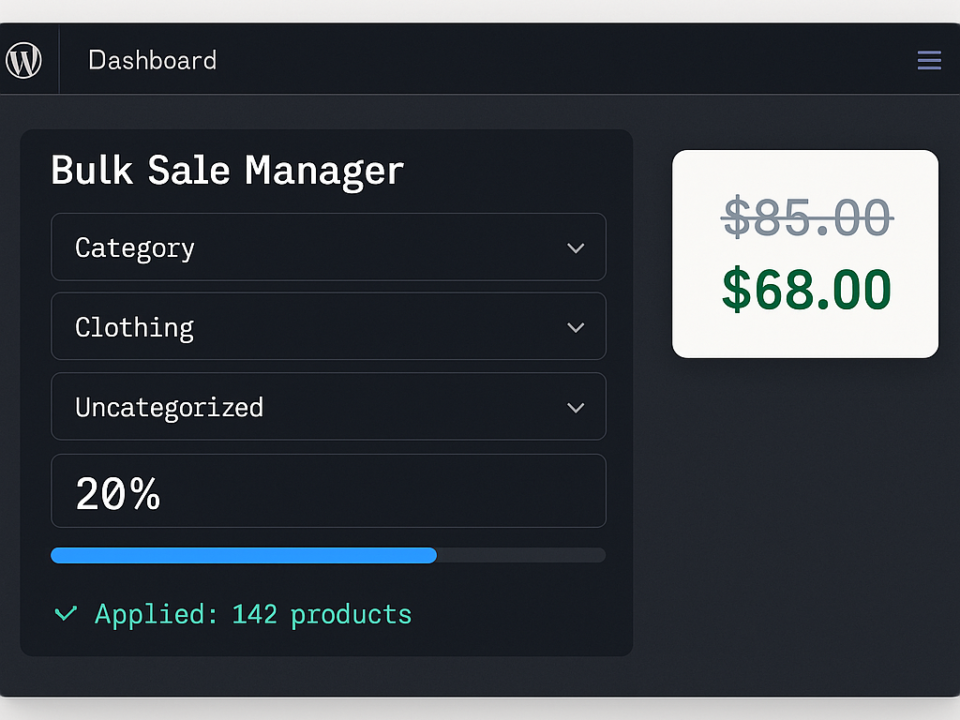
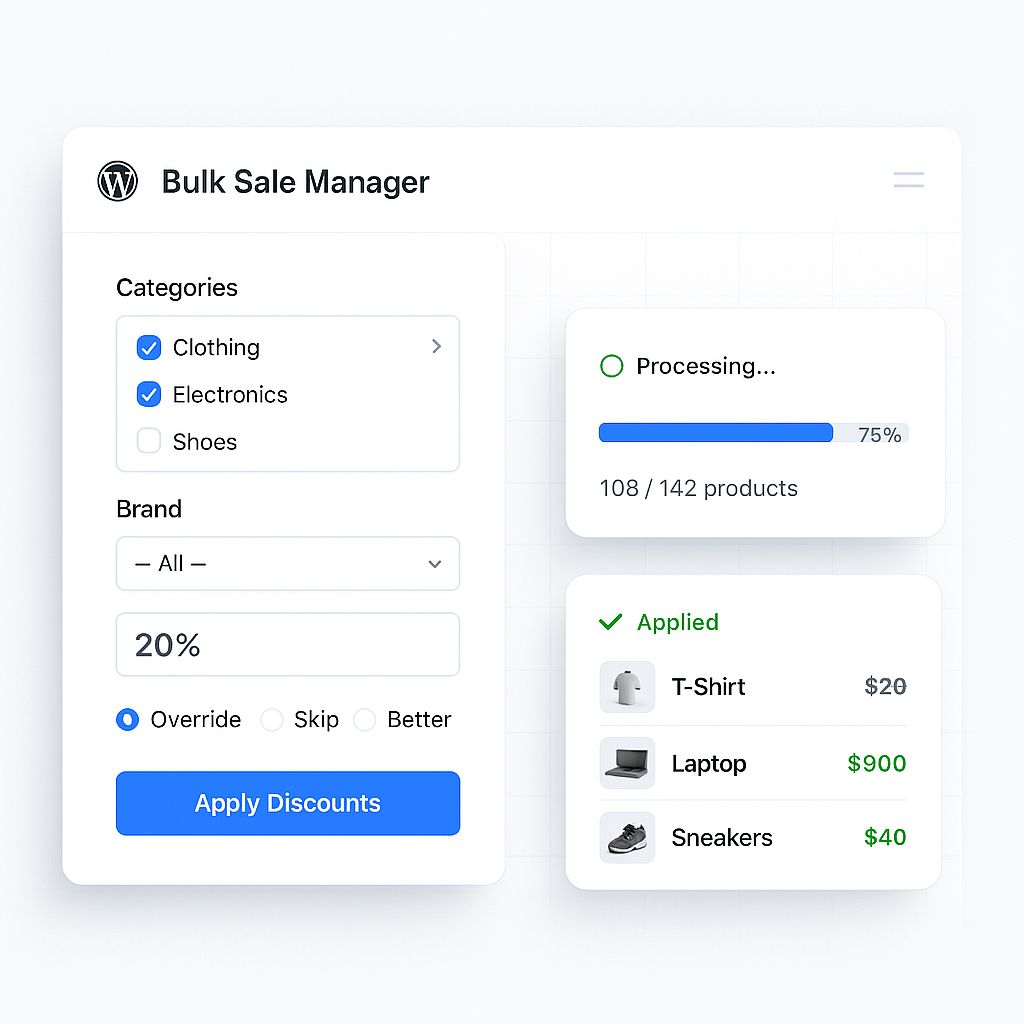
Scenario 1: Bulk Updating Sale Prices for Variable Products
This is perhaps the most common frustration. You want to apply a sale across multiple variations of a product, but the native editor doesn’t play ball.
Using a Plugin like WP Sheet Editor:
- Access the Editor: Navigate to WP Sheet Editor → Edit Products.
- Filter for Variable Products (Optional but Recommended): Use the filtering tools to select only variable products if you want to apply the sale to a specific subset. Alternatively, you can select all products and then refine your edits later.
- Locate Variation Data: Your spreadsheet view will likely show parent products and then expandable rows for their variations. Ensure you have columns visible for “Sale Price” specifically for variations.
- Select Variations: Click on the “Sale Price” cells for the variations you wish to update. You can select individual cells, entire columns for specific variations across multiple products, or use the “Select All” option within a filtered view.
- Use the Bulk Editor Tool:
- Look for a dedicated “Bulk Edit” or similar button/menu option.
- In the bulk edit window, select “Sale Price (for variations)” as the field to modify.
- Choose the operation: “Set,” “Add,” “Subtract,” or “Multiply.”
- Enter the new sale price, a discount amount, or a percentage. For instance, to set a specific sale price, you’d choose “Set” and enter the price.
- Apply the changes. The plugin will then update the sale price for all selected variations.
Using a Plugin like Bulky:
- Navigate to Bulk Edit: Access Bulky’s bulk editing section, often found under WooCommerce → Bulky → Bulk Edit.
- Select Product Type: Choose “Variable Products” or “Variations” as the primary target for your edit.
- Choose Fields to Edit: Select the “Sale Price” field.
- Define Your Target Variations: Use Bulky’s filtering options to precisely select the variations you want to modify. You might filter by product category, parent product, or even attribute values.
- Set the New Sale Price: In the provided options, specify the new sale price. You can either enter a fixed amount or use calculations (e.g., “Set current price minus 10%”).
- Execute the Bulk Edit: Review your selections and run the operation.
Scenario 2: Updating Stock Levels for All Variations of Specific Products
Maintaining accurate stock is critical. If you receive a new shipment, you’ll want to update your stock levels efficiently.
Using a Plugin like WP Sheet Editor:
- Access the Editor: Go to WP Sheet Editor → Edit Products.
- Filter (if needed): Select the specific parent variable products whose variation stock you need to update.
- Locate Variation Stock Field: Ensure the “Stock Quantity (for variations)” column is visible.
- Select Variations: Select the variations whose stock needs updating. If it’s all variations for a particular product, you might expand that product’s row and select them all.
- Use the Bulk Editor Tool:
- Initiate the bulk edit function.
- Select “Stock Quantity (for variations)” as the field.
- Choose “Set” and enter the new stock quantity. Alternatively, use “Add” to increase stock by a certain number or “Subtract” to decrease it.
- Apply the changes.
Using a Plugin like Bulky:
- Go to Bulk Edit: Navigate to your chosen plugin’s bulk edit interface.
- Target Variations: Ensure your operation is set to affect “Variations.”
- Select Fields: Choose “Stock Quantity.”
- Specify Products/Variations: Use the filtering system to identify the specific parent products or individual variations.
- Define Stock Update: Enter the new stock quantity to set, or specify an amount to add or subtract.
- Run the Edit: Confirm your settings and execute the update.
Scenario 3: Modifying Variable Product Attributes (e.g., Adding a New Colour)
This is a more advanced scenario, often involving the creation of new variations or modification of existing attributes. While some plugins are better suited than others, many offer substantial capabilities here.
Using a Plugin like WP Sheet Editor:
- Direct Editing: You can often edit attribute values directly within the spreadsheet interface. For instance, if a product has variations for “Size” and then “Colour,” you can click into a “Colour” cell for a specific variation and change it (e.g., from “Blue” to “Teal”).
- Bulk Attribute Assignment/Modification: Some plugins offer specialized tools within their bulk editor to assign specific attributes to selected variations or modify existing attribute values across multiple variations. This might involve selecting a range of variations and then applying a new attribute value to a specific attribute.
- Creating New Variations: Many advanced plugins also facilitate creation of new variations in bulk, often from CSV imports, where you can define all the attributes for new variations.
Using a Plugin like Bulky:
- Attribute Management: Bulky typically provides options to edit attributes for variations. This might include selecting an attribute and then using a bulk operation to set a new value for it across a range of selected variations.
- Advanced Filtering: You can often filter variations based on their existing attribute values, allowing you to target specific groups for attribute modification.
Important Considerations for Attribute Editing:
- Consistency is Key: When modifying attributes, ensure you maintain consistency across your product catalogue to avoid customer confusion.
- New Variations: If you’re adding entirely new combinations of attributes (e.g., a new colour that wasn’t previously offered for a size), you might need to create new variations, which can be a distinct feature within these plugins.
- Attribute Terminology: Be mindful of exact attribute terminology. “Blue” is different from “blue.”
By following these practical steps, you can move beyond the limitations of WooCommerce’s default tools and effectively manage the complex data associated with your variable products. Always test any bulk edit operation on a small subset of products or in a staging environment first to ensure you achieve the desired results without unintended consequences.
Conclusion: Reclaiming Control Over Your WooCommerce Store
The inherent structure of WooCommerce variable products, while offering immense flexibility for customers, presents a significant hurdle for efficient management through the platform’s native bulk editing tools. The inability to cascade changes from the parent product to its individual variations is a well-documented issue, leading to hours of tedious manual work for store owners.
You’ve explored the reasons behind this limitation: the independent nature of variation-level data, where each variation acts as a distinct entity with its own pricing, stock, and attribute information. You’ve understood that the default WooCommerce bulk edit interface operates at the parent product level, thus bypassing the crucial variation data.
The good news is that this operational bottleneck is not insurmountable. The WooCommerce ecosystem thrives on third-party extensions designed to address these specific pain points. Plugins like WP Sheet Editor and Bulky offer sophisticated, spreadsheet-like interfaces and dedicated bulk editing functionalities that provide granular control over every aspect of your variable products. From adjusting sale prices across hundreds of variations simultaneously to updating stock levels or even managing attribute values, these tools empower you to perform these tasks with speed, accuracy, and significantly reduced effort.
By embracing these solutions, you can move away from manual, error-prone processes and adopt a more streamlined approach to WooCommerce product management. This is not about overcoming a minor inconvenience; it’s about reclaiming valuable time, reducing the risk of costly errors, and ultimately improving the overall efficiency and profitability of your online store. The potential for confusion and frustration when dealing with variable products can now be replaced with confidence and control. By understanding the problem and implementing the right tools, you can ensure your WooCommerce store operates as smoothly and efficiently as possible, allowing you to focus on growing your business rather than battling with its backend.
FAQs
What is WooCommerce Bulk Edit?
WooCommerce Bulk Edit is a feature that allows users to make changes to multiple products at once, saving time and effort when managing a large inventory of products.
What are Variable Products in WooCommerce?
Variable products in WooCommerce are products that have multiple variations, such as different sizes, colors, or other attributes. Each variation can have its own price, stock level, and other attributes.
Why doesn’t WooCommerce Bulk Edit work for Variable Products?
WooCommerce Bulk Edit does not work for variable products by default because it is designed to handle simple products, and does not have the capability to manage the variations within a variable product.
What is the fix for WooCommerce Bulk Edit not working for Variable Products?
The fix for this issue involves using a plugin or extension specifically designed to handle bulk editing of variable products. There are several third-party plugins available that can provide this functionality.
Are there any alternative methods for bulk editing variable products in WooCommerce?
Yes, there are alternative methods for bulk editing variable products in WooCommerce, such as using CSV import/export tools or custom coding solutions. However, using a dedicated plugin or extension is often the most efficient and user-friendly option.